
The No-Nonsense Guide to Create Company Profile on Google
Your Local Business Is Invisible Without This Free Google Tool
If you want to create a company profile on Google, here’s the fastest way to do it:
- Go to business.google.com/add
- Sign in with your Google Account (use your business email)
- Enter your business name, category, and location or service area
- Add your phone number, website, and hours
- Choose a verification method and complete it
- Your profile goes live on Google Search and Maps once verified
That’s the short version. The rest of this guide covers every detail so you get it right the first time.
When a potential customer searches for what you sell, Google decides whose business to show. If you don’t have a verified Google Business Profile, you’re simply not in the running.
The good news? It’s completely free. And setting it up takes less than 30 minutes for most small businesses.
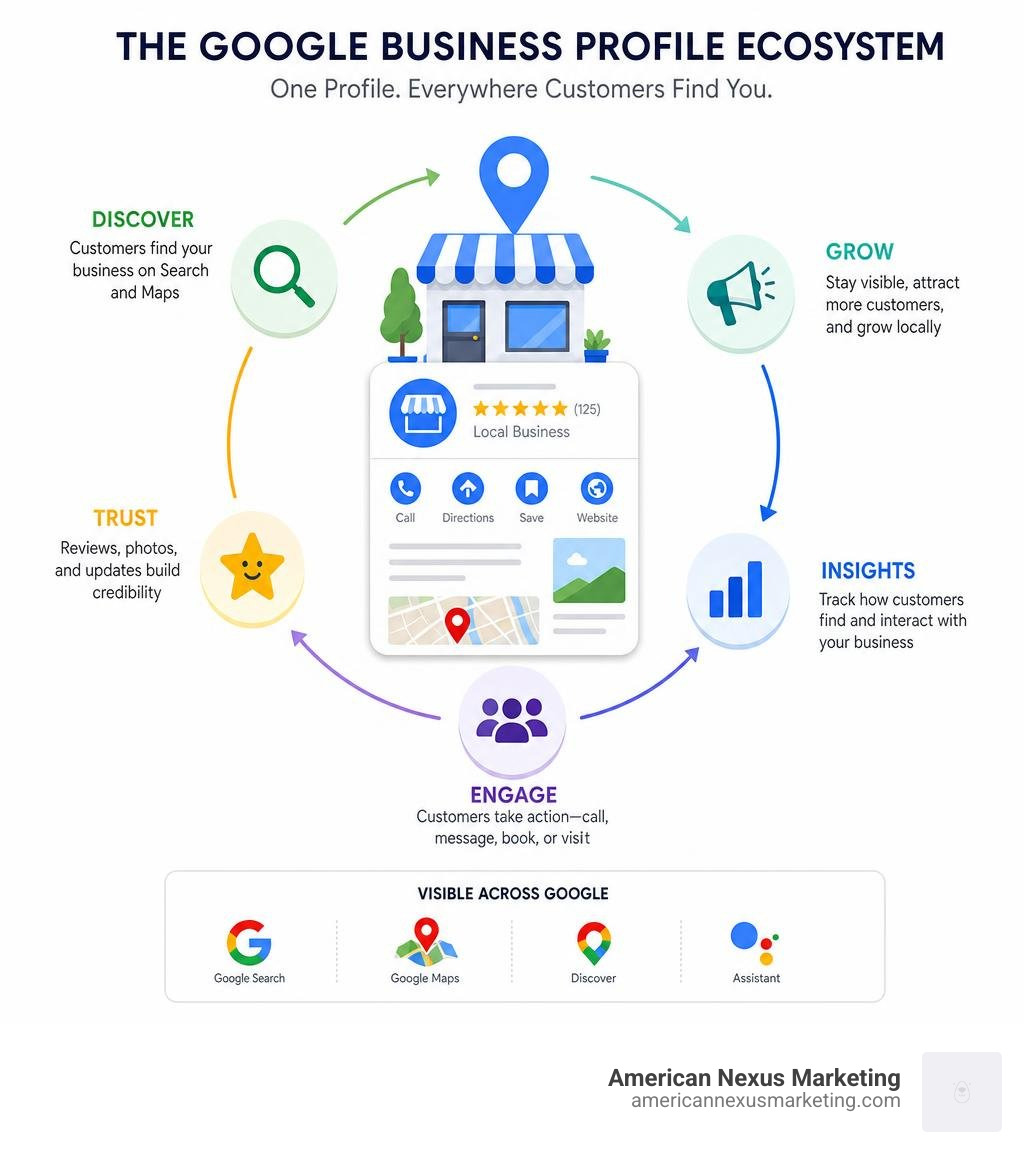
A Google Business Profile puts your business on both Google Search and Google Maps at the same time. Customers can see your hours, call you directly, read reviews, and even book an appointment — all before they ever visit your website.
Think of it as a digital storefront that works 24/7, even while you’re focused on running your business.
What is a Google Business Profile and Who is Eligible?
A Google Business Profile (formerly known as Google My Business) is a free tool provided by Google that lets local business owners manage how their business appears across Google Search and Google Maps. It acts as an interactive directory card containing your contact details, website, physical location, photos, customer reviews, and updates.
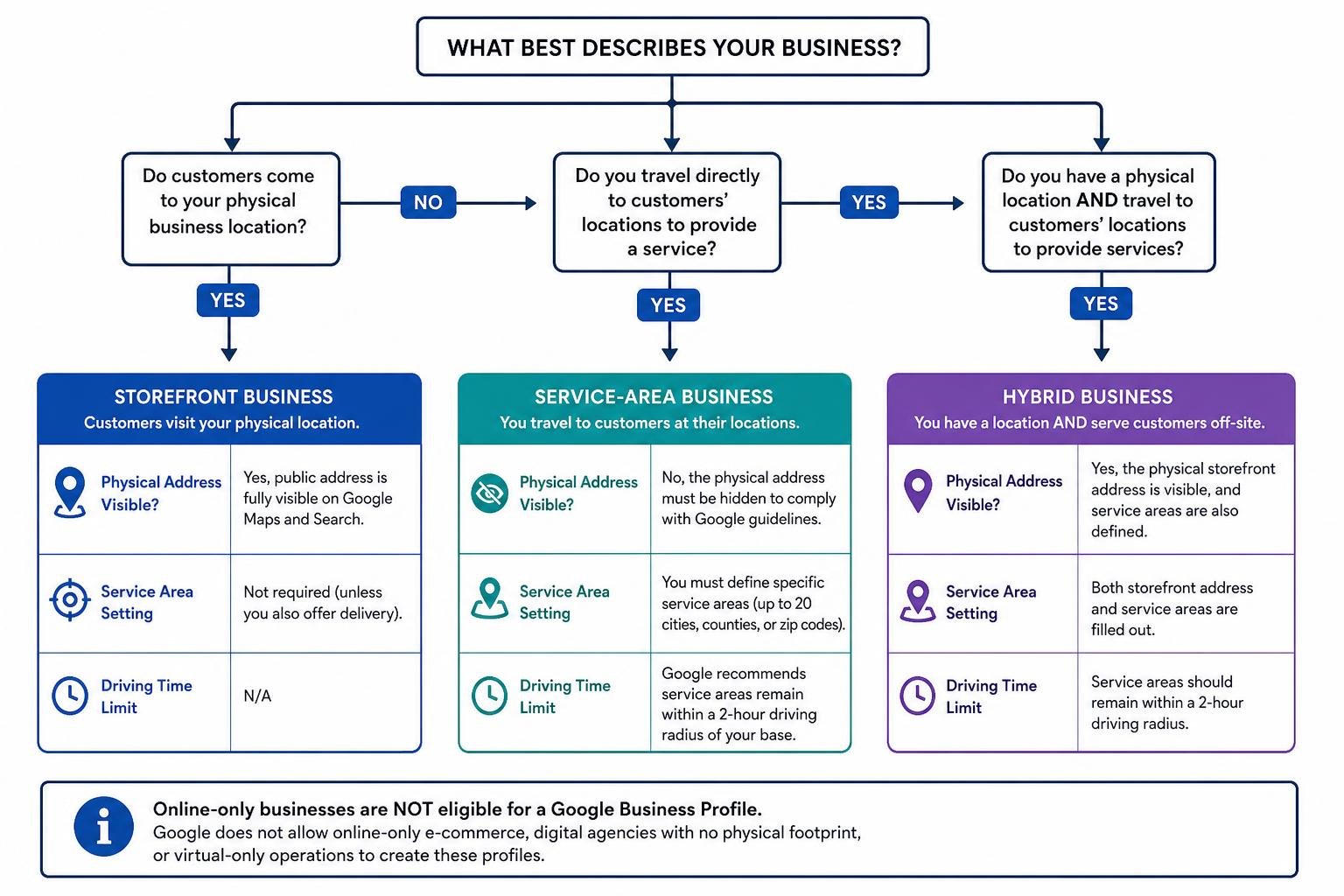
However, Google enforces strict eligibility guidelines to keep search results helpful and accurate. To be eligible for a Business Profile, your business must make face-to-face contact with customers during its stated operating hours. This face-to-face contact can happen in one of two ways:
- Customers come to your physical business location (a storefront business).
- You travel directly to your customers’ locations to provide a service (a service-area business).
If your business is entirely online-only, you are not eligible for a Google Business Profile. Google strictly prohibits online-only e-commerce brands, digital agencies with no physical footprint, and virtual-only operations from creating these profiles. If you fall into this category, Google recommends using other marketing solutions like Google Ads to build your search visibility.
To learn more about these official guidelines, you can review the official resource on how to Get started with Google Business Profile – Google Business Profile Help.
Why You Need to Create Company Profile on Google
In July 2026, relying solely on traditional advertising or standard website SEO is no longer enough. Your digital presence on Search and Maps acts as your business’s true “second storefront.”
Here is why you must create a company profile on Google:
- Instant Search Visibility: When nearby customers search for services “near me” or look up your specific business category, Google features verified Business Profiles in the prominent “Local 3-Pack” at the very top of search results.
- Builds Immediate Customer Trust: Reviews, ratings, and active posts give potential buyers the confidence to purchase. Seeing a complete, verified profile with active owner responses establishes instant credibility.
- Free Marketing and Advertising: Unlike paid directory listings or sponsored ads, a Google Business Profile costs absolutely nothing. It is a powerful, high-yield marketing tool available to any eligible business owner.
- Seamless Maps Navigation: By listing your physical location, you make it incredibly easy for customers to get turn-by-turn driving directions straight to your door.
Storefront vs. Service-Area Businesses
Understanding the differences between a storefront business and a service-area business is critical to setting up your profile correctly. If you select the wrong type or display your address when you shouldn’t, Google may suspend your account.
| Feature | Storefront Business | Service-Area Business (SAB) | Hybrid Business |
|---|---|---|---|
| Definition | Customers visit your physical location (e.g., retail store, salon, restaurant). | You deliver services to customers at their locations (e.g., plumber, electrician, mobile pet groomer). | You have a physical location and serve customers off-site (e.g., a bakery that also delivers). |
| Physical Address Visible? | Yes, public address is fully visible on Google Maps and Search. | No, the physical address must be hidden to comply with Google guidelines. | Yes, the physical storefront address is visible, and service areas are also defined. |
| Service Area Setting | Not required (unless you also offer delivery). | You must define specific service areas (up to 20 cities, counties, or zip codes). | Both storefront address and service areas are filled out. |
| Driving Time Limit | N/A | Google recommends service areas remain within a 2-hour driving radius of your base. | Service areas should remain within a 2-hour driving radius. |
If you operate out of a home office or a co-working space and do not have dedicated staff on-site during business hours, you must set your profile up as a service-area business and hide your address. Showing a residential address where customers cannot walk in and get served is a fast track to profile suspension.
Step-by-Step: How to Create Company Profile on Google
Ready to claim your spot on the map? Here is our checklist-driven, step-by-step guide to setting up your new profile.
To start the process, make sure you are signed into your primary Google Account. We highly recommend using a company-branded email address (e.g., yourname@yourbusiness.com) rather than a personal Gmail account. This keeps your business assets secure and makes it much easier to manage access later.
Once signed in, head over to Get Listed on Google – Google Business Profile to begin.
Checklist Before You Create Company Profile on Google
Before you click “Manage Now,” gather all your essential business details in one document. Having this ready ensures consistency across the web, which is highly beneficial for your local SEO.
- Official Business Name: Use your real-world business name. Do not stuff keywords into your name (e.g., write “Silver Lake Plumbing,” not “Silver Lake Plumbing – Best Cheap Plumbers Near Me”). Google will flag and suspend profiles that keyword-stuff their titles.
- Primary Business Category: Choose the most specific category that matches your business (e.g., “Italian Restaurant” instead of just “Restaurant”). You can add secondary categories later, but the primary category carries the most weight.
- Phone Number: Use a local phone number directly associated with your physical storefront or service office. Avoid using remote call center numbers or generic toll-free numbers if possible.
- Website URL: Link to your official homepage. If you have multiple locations, link directly to the specific location page on your website.
- Operating Hours: Outline your regular weekly operating hours. Make sure these match the hours listed on your website and social media profiles.
For a deeper dive into the initial signup phase, see the official step-by-step guide on how to Sign up for Business Profile – Google Business Profile Help.
How to Claim an Existing or Unverified Listing
Sometimes, Google automatically generates an unverified placeholder listing for your business based on web data, or perhaps a previous owner set one up years ago. You will need to claim this listing to take control of it.
If you find an unverified listing for your business, you can claim it in a couple of ways:
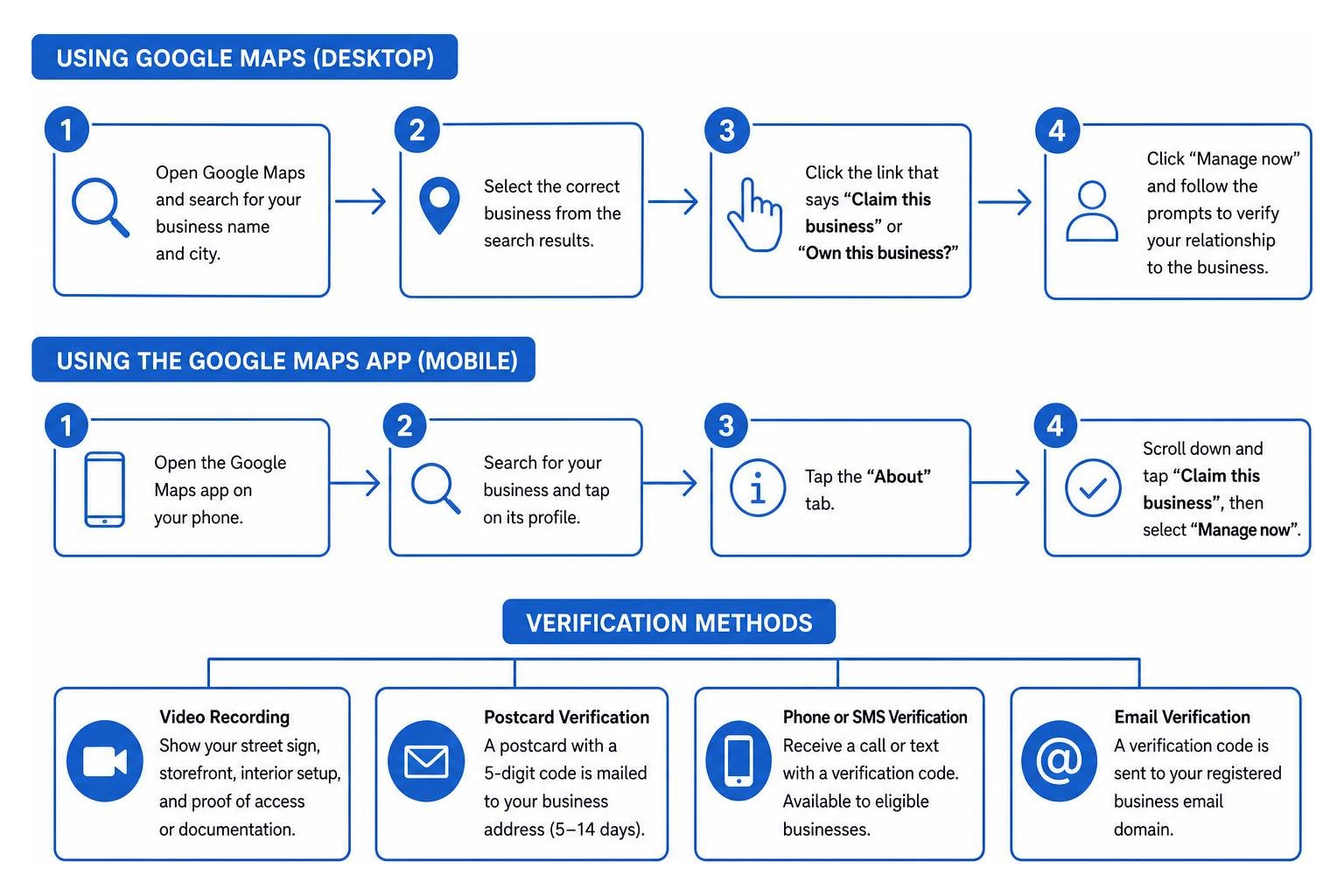
Using a Desktop Browser:
- Open Google Maps and search for your business name and city.
- Select the correct business from the search results.
- Click the link that says “Claim this business” or “Own this business?”
- Click “Manage now” and follow the prompts to verify your relationship to the business.
Using the Google Maps App (Mobile):
- Open the Google Maps app on your phone.
- Search for your business and tap on its profile.
- Tap the “About” tab.
- Scroll down and tap “Claim this business”, then select “Manage now”.
If you attempt to claim a profile and see a message stating that someone else has already verified this business, do not panic. This usually means an employee, agency, or former owner verified it in the past. In this scenario, you must submit an official ownership request through Google’s interface, which we will explain in detail below.
For the official instructions on claiming, check out Add or claim your Business Profile – Google Business Profile Help.
Verifying and Managing Your New Profile
Creating your profile is only half the battle. Your business will not appear publicly on Google Search or Maps until your profile is successfully verified. Google requires verification to prevent spam and ensure that only legitimate business owners are representing companies online.
Verification Methods
Google offers several verification methods. The options available to you depend on your business category, region, and whether you are a storefront or service-area business.
- Video Recording (Most Common): Google frequently requires a continuous video recording of your business. The video must show your street sign, storefront, your interior setup, and proof that you have access to the business (such as unlocking the front door with your key or showing your business license).
- Postcard Verification: Google mails a physical postcard containing a unique 5-digit verification code to your business address. Postcards typically arrive within 5 to 14 business days. Do not edit your business details while waiting for the postcard, as this can void the code.
- Phone or SMS Verification: Some eligible businesses will receive a call or text message with a verification code. This is instant but is not offered to every business.
- Email Verification: Similar to phone verification, a code is sent to your registered business email domain.
What to Do If Someone Else Claimed Your Business
If your business profile has already been claimed and verified by a third party, you will need to request ownership:
- Go to business.google.com/add.
- Enter your exact business name.
- When the system displays that the business is already claimed, click “Request Access”.
- Fill out the request form. Specify your relationship to the business (e.g., Owner, Manager) and share your contact details.
- Click Submit.
The current profile owner has 3 days to respond to your request. If they approve it, you will receive an email confirmation and gain access. If they reject it or do not respond within 3 days, Google will send you an email with steps to verify your ownership directly (often by submitting official business documentation or completing a video verification).
Adding Users and Updating Profile Details
Once your profile is live, you do not have to manage it all on your own. You can invite team members or marketing agencies to help you keep things updated.
Google Business Profile offers two primary user roles:
- Owners: Have full administrative control. Only owners can delete the profile, add or remove other users, or transfer primary ownership.
- Managers: Can edit business details, respond to customer reviews, publish posts, upload photos, and view performance insights. Managers cannot manage other users or delete the profile.
To add a user, go to your Business Profile on Google Search, click the three-dot menu icon in the top right corner, select “Business Profile settings”, click “People and access”, and enter the email address of the person you want to invite.
Maximizing Engagement: Reviews, Products, and Bookings
Once your profile is verified and active, it is time to turn searchers into paying clients. A complete, engaging profile builds trust and makes taking action effortless for your prospects.
Showcasing Your Offerings and Enabling Bookings
Do not make customers search through your website to see what you offer. You can display your products, services, or menus directly on your Google Business Profile.
- Showcase Products: If you run a retail shop, you can upload photos, descriptions, and pricing of your products. Google even offers automated local inventory integrations to display what is currently in stock at your physical store.
- List Your Services: Service-area businesses can create a clean, structured menu of services with transparent pricing. This helps pre-qualify leads before they call.
- Enable 24/7 Online Booking: You can integrate your profile with approved third-party scheduling platforms. This allows searchers to book appointments or reserve tables directly through your Google listing without leaving Search or Maps.
- Use Real-Time Quotes: If you operate a service business, you can activate the messaging feature to receive and respond to quote requests instantly. Responding quickly to these inquiries is one of the easiest ways to win jobs over your competitors.
Tracking Performance with Profile Insights
Google provides built-in performance analytics directly in your dashboard. These insights show you exactly how people find your profile and what they do once they get there.
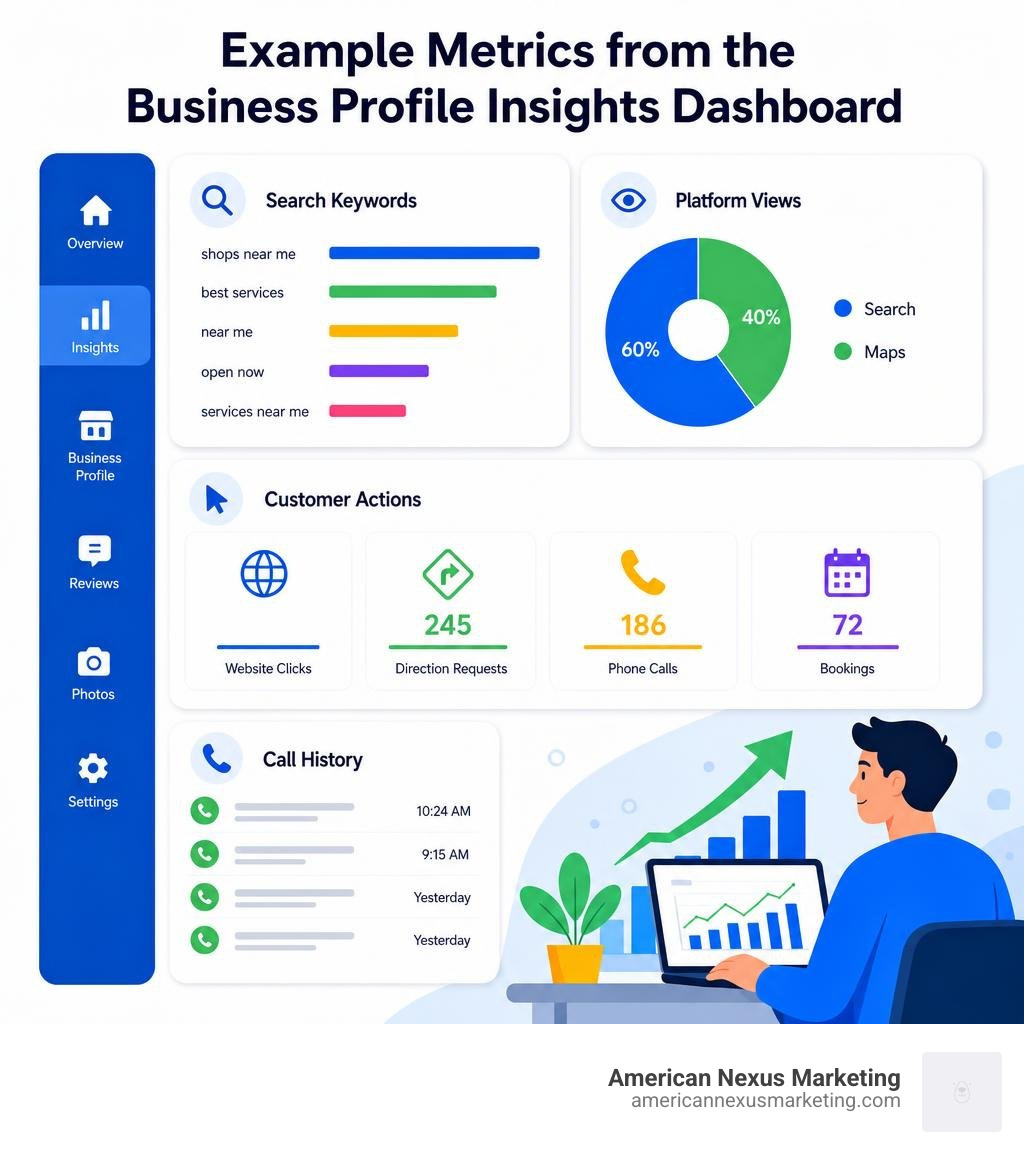
Key metrics you can track include:
- Search Keywords: The exact phrases and search queries people typed into Google to discover your business.
- Platform Views: How many views your profile received on Google Search versus Google Maps.
- Customer Actions: The number of times users clicked your website link, requested directions, called your phone number, or booked an appointment.
- Call History: A log of calls received directly from the “Call” button on your profile.
Frequently Asked Questions about Google Business Profiles
Is a Google Business Profile really free?
Yes. Creating, claiming, verifying, and managing a Google Business Profile is completely free of charge. Google does not charge any subscription or listing fees. Any service claiming that you must pay a monthly fee to keep your Google listing active is a scam.
Can online-only businesses create a profile?
No. Google’s guidelines strictly state that only businesses that make personal, face-to-face contact with customers are eligible. Online-only stores, digital agencies without physical offices, and virtual service brands are not allowed to create a profile.
How long does the verification process take?
It depends on the method. Phone, email, and video verifications can be approved within a few minutes to 5 business days. Postcard verification takes between 5 to 14 business days for the postcard to arrive, plus an additional 3 to 5 business days for Google to process the code once you enter it.
Conclusion
Creating your company profile on Google is the single most important step you can take to build your local search presence. It is a free, powerful, and straightforward way to ensure that local customers can find you precisely when they need your services.
At American Nexus Marketing, we specialize in helping small, solo-founder teams and local businesses cut through the complex jargon of digital marketing. We provide practical, checklist-driven advice to help you grow your business without breaking the bank.
Once you have set up your profile, the next step is to optimize it so you can outrank your local competitors. To learn how to fully maximize your reach, read our comprehensive guide on how to Optimize your Google Business Profile in 2026.
Pingback: GMB Google My Business: Free Guide
Pingback: Local SEO Google Search: Master the 2026 Blueprint