
What Is GMB Google My Business — and Why It Matters for Local Businesses
GMB Google My Business — now officially called Google Business Profile — is a free tool that lets any local business control how it appears on Google Search and Google Maps.
Here’s the quick version if you just need the basics:
- What it is: A free profile that shows your business name, hours, address, phone, photos, and reviews on Google
- Who it’s for: Any local business — whether you have a storefront, work from home, or serve customers at their location
- What it costs: $0 — completely free to create and manage
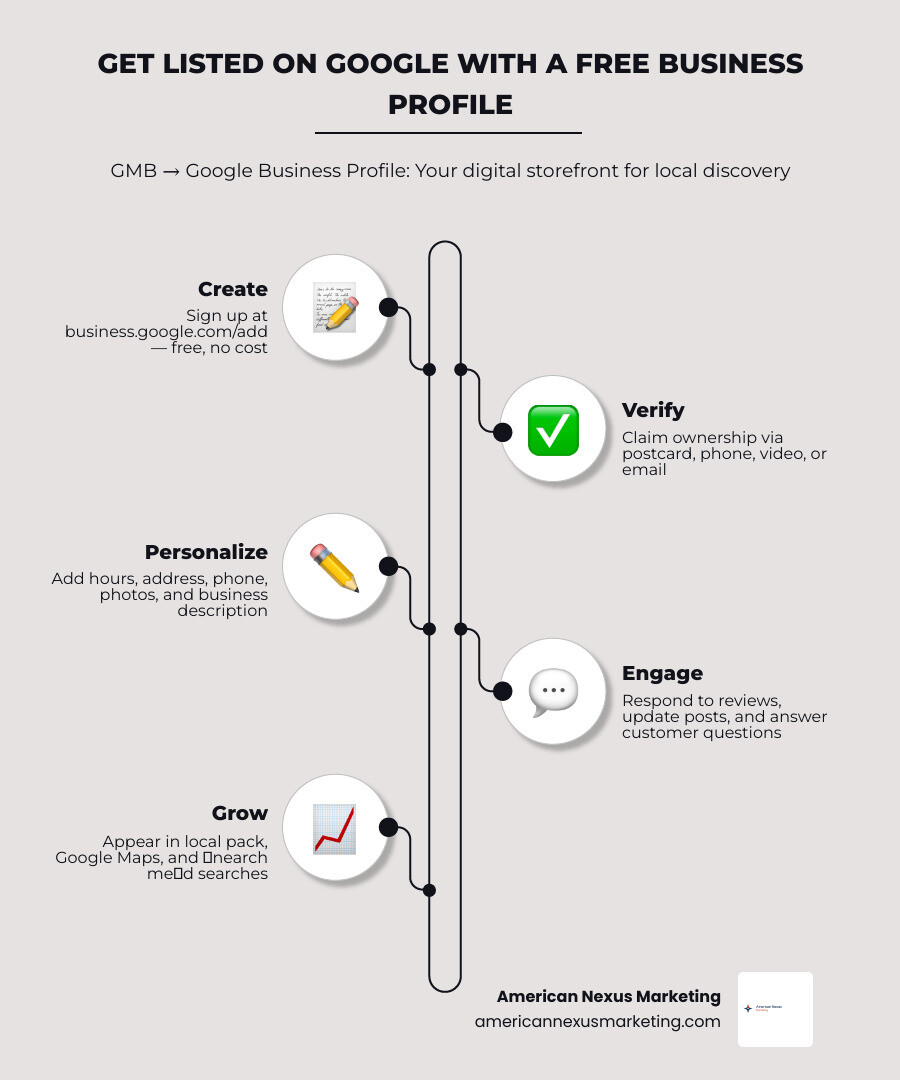
- How to get started: Create or claim your profile at business.google.com/add, then verify ownership and fill in your details
- Why it matters: It’s how customers find you when they search “near me” or look you up on Google Maps
Think of your Google Business Profile as your business’s digital front door. Before a customer ever visits your website — or walks through your actual door — they’ve already seen your Google listing.
One business owner who opened a physical store over three decades ago now reaches customers far beyond their local neighborhood, simply by maintaining an active profile. That kind of reach used to cost serious money. Today, it’s free.
Whether you’re brand new to local search or trying to get more out of a profile you set up years ago, this guide covers everything you need to know.
Simple guide to gmb google my business:
Understanding the Transition from gmb google my business to Google Business Profile
If you have been searching for ways to get your local business found online, you have likely run into the acronym gmb google my business. For years, this was the go-to name for Google’s local listing platform. However, Google rebranded the service to Google Business Profile (GBP).
Why the change? Google wanted to make local business management much simpler. Instead of forcing you to log into a separate, clunky dashboard, they made it possible to edit your listing directly from Google Search and Google Maps.
Despite the rebranding, the core mission remains the exact same: helping local businesses get noticed by local searchers. If you want to dominate the local map pack, understanding this tool is essential. If you want to dive deeper into why this matters, check out our guide on Why Your Business Needs the Best Local SEO Expert to Dominate Google Maps.
Is gmb google my business Free to Create?
Yes! Creating and managing a Google Business Profile is completely free of charge. Google does not charge any subscription fees, setup fees, or hidden costs to list your business.
With a free profile, you can be found on both Google Search and Google Maps. You can showcase your products, update your service lists, publish menus, and upload high-quality photos without spending a single dime. It is easily the most cost-effective local marketing tool available today. You can get started right now by visiting Get Listed on Google – Google Business Profile or the global portal at Get Listed on Google – Google Business Profile .
Why Your Business Needs a Digital Storefront
Think of your Google Business Profile as your “second storefront” in the digital space. When local customers have a specific search intent—like finding a “plumber near me” or “best tacos in Austin”—they do not scroll past the local map pack. They look at the top three listings on Google Maps.
Having an optimized profile ensures that:
- You capture high-intent local traffic immediately.
- Customers can quickly find your accurate NAP (Name, Address, Phone number) details.
- You build immediate credibility through customer reviews and high-quality photos.
If you do not have a verified profile, you are essentially invisible to a massive portion of your local market. For a straightforward, step-by-step primer on getting started, read The No-Nonsense Guide to Create Company Profile on Google.
How to Add, Claim, and Verify Your Profile
Setting up your business on Google is a straightforward process, but you must strictly follow Google’s eligibility and ownership guidelines. To qualify for a profile, your business must make in-person contact with customers during its stated hours—either at your physical location or within a designated local service area.
To begin the process, navigate to the official setup page. For a thorough walkthrough of how to place your business on Google’s digital map, check out our guide on Google Company Profile 101: Put Your Business on the Digital Map.
Step-by-Step Guide to Claiming an Unverified Listing
Sometimes, Google automatically generates an unverified listing for your business based on historical web data. If your business already exists on Google Maps but is unverified, you need to claim it.
Here is how to claim an unverified listing:
- On Desktop: Open Google Maps and search for your business name and city. If you see the listing, click “Claim this business” followed by “Manage now,” and choose your preferred verification option.
- On Mobile: Open the Google Maps app, search for your business, tap the “About” tab, select “Claim this business,” and follow the step-by-step instructions.
If the profile has already been verified by someone else (such as a previous employee or agency), do not worry. You will not be able to claim it directly, but you can click “Request Access” to send an email transfer request to the current owner.
Verification Methods and Best Practices
Google requires verification to prove that you are the actual owner of the business. Depending on your business category and location, Google will offer one or more of the following verification methods:
- Postcard: Google mails a physical postcard with a 5-digit verification code to your business address. It typically arrives within 5 to 14 business days.
- Phone or SMS: Google sends a code via an automated call or text message to your verified business phone number.
- Email: A verification code is sent to your business email address.
- Video Recording: You record a continuous video showing your business location, street signs, physical equipment, and proof of management (such as unlocking the front door or showing your business license).
Pro-Tip: Be very careful when editing core business details like your business name or physical address after verification. Doing so can trigger a security flag and force you to go through the re-verification process all over again.
Optimizing Your Profile: Information, Reviews, and Industry Features
Once verified, you can edit your profile directly on Google Search or the Google Maps app. Keeping your information accurate is critical for local rankings.
One of the biggest mistakes local businesses make is having inconsistent business details across the web. To learn how to keep your business details accurate, read our checklist on Keep It Consistent: How to Audit Your Business NAP for Better Rankings.
Editing Core Business Information
When editing your profile, focus on providing accurate, clean data:
- Business Name: Use your real-world business name exactly as it appears on your signage and branding. Do not stuff keywords into your name, as this violates Google’s guidelines and can lead to suspension.
- Business Description: Write a compelling description up to 750 characters. Focus on your history, values, and what makes you unique. Avoid adding promotional language, sales pitches, links, or HTML code.
- Phone Numbers: You can add a primary phone number and up to two additional phone numbers to help customers reach you.
- Social Media Links: You can add one social media link per platform (including Facebook, Instagram, LinkedIn, Pinterest, TikTok, X, and YouTube) to display directly on your profile.
If your online listings are a mess, a citation cleanup service can save you hours of manual work. Learn more about this by reading Clean Up Your Act: Why You Need a Professional Citation Cleanup Service.
Managing Customer Reviews on gmb google my business
Customer reviews are the lifeblood of local SEO. They build immediate trust with potential buyers and signal to Google that your business is active and reliable.
- Ask for Reviews: Share your direct review link with happy customers via email or SMS.
- Respond to Everything: Respond promptly to both positive and negative reviews. When replying to positive reviews, thank the customer and mention the specific service they received.
- Handle Negative Reviews Gracefully: Never get defensive. Apologize for their experience, keep your response professional, and offer to resolve the issue offline.
Industry-Specific Features for Retail, Services, and Restaurants
Google provides unique toolsets depending on your selected primary business category. Selecting the right category unlocks tailored features designed to maximize conversions:
| Business Type | Key Features | Real-World Use Case |
|---|---|---|
| Retail Stores | Product Showcase, Point-of-Sale (POS) Inventory Sync, Curbside Pickup | A local boutique syncs its physical inventory so nearby searchers can see what is in stock. |
| Service Businesses | Service Areas, Online Booking, Real-Time Quote Requests | A plumber hides their home address, defines a 20-mile service radius, and accepts quote requests directly on Google. |
| Restaurants | Digital Menus, Direct Table Reservations, Online Ordering Links | A neighborhood bistro uploads its menu and connects a reservation link to fill tables on busy weekends. |
Advanced Management: APIs and Technical Troubleshooting
For larger organizations, developers, or tech-savvy business owners, Google offers advanced programmatic ways to manage profiles.
Using Google Business Profile APIs for Multi-Location Brands
If you manage dozens or hundreds of business locations, updating them manually through the Google Search dashboard is highly inefficient. The Google Business Profile APIs allow you to manage your locations programmatically.
- My Business Business Information API: This API allows you to control locations, categories, attributes, and business info programmatically. You can read the documentation at My Business Business Information API | Google Business Profile APIs | Google for Developers .
- Accounts Resource: Helps developers manage account structures, user permissions, and organizational details. Read more about the structure at REST Resource: accounts | Google Business Profile APIs | Google for Developers .
- Google My Business API: This legacy endpoint still handles reviews, local posts, questions, and media uploads. You can explore the developer reference guides at Google My Business API | Google Business Profile APIs | Google for Developers and Google My Business API | Google Business Profile APIs | Google for Developers .
Developer Note: If you enable the API in the Google Cloud Console and find that your API quota is set to 0, you must explicitly submit a request to Google for Google Business Profile API access.
Troubleshooting Browser Compatibility Issues
Sometimes, when trying to access your profile dashboard, you might get redirected to an error page stating that your web browser is not supported.
If you run into browser compatibility issues:
- Update your web browser (Chrome, Safari, Edge, or Firefox) to the latest version.
- Clear your browser’s cache and cookies, then try logging in again.
- If the issue persists, post your question to the Google Help Community or contact Google support directly.
Frequently Asked Questions
Why can’t I access my Google Business Profile?
If you cannot access your profile, your web browser may be outdated or unsupported. Ensure your browser is updated to the latest version. Alternatively, make sure you are logged into the exact Google Account that you used to claim or create the profile.
Can I hide my physical address on Google Maps?
Yes! If you run your business from home or do not have a physical storefront where customers can walk in, you should set your profile as a Service Area Business. During setup, select “No” when asked if you have a physical location customers can visit. You can then hide your address and define your service areas by cities, counties, or zip codes.
How many phone numbers can I add to my profile?
You can add one primary business phone number and up to two additional phone numbers to your Google Business Profile. This is helpful if you want to display a local number as primary while keeping a toll-free number on backup.
Conclusion
Setting up and optimizing your gmb google my business profile is one of the most powerful, zero-cost digital marketing moves you can make. It places your business directly in front of local searchers at the exact moment they are ready to buy.
At American Nexus Marketing, we believe in keeping digital marketing simple, actionable, and jargon-free for small businesses. Take control of your local search presence today by setting up your profile, collecting reviews, and keeping your business details accurate.
Ready to take your local rankings to the next level? Read our complete blueprint on how to Optimize your Google Business Profile in 2026 and watch your local leads multiply!