
Why the Dotmailer Salesforce Integration Is Worth Getting Right
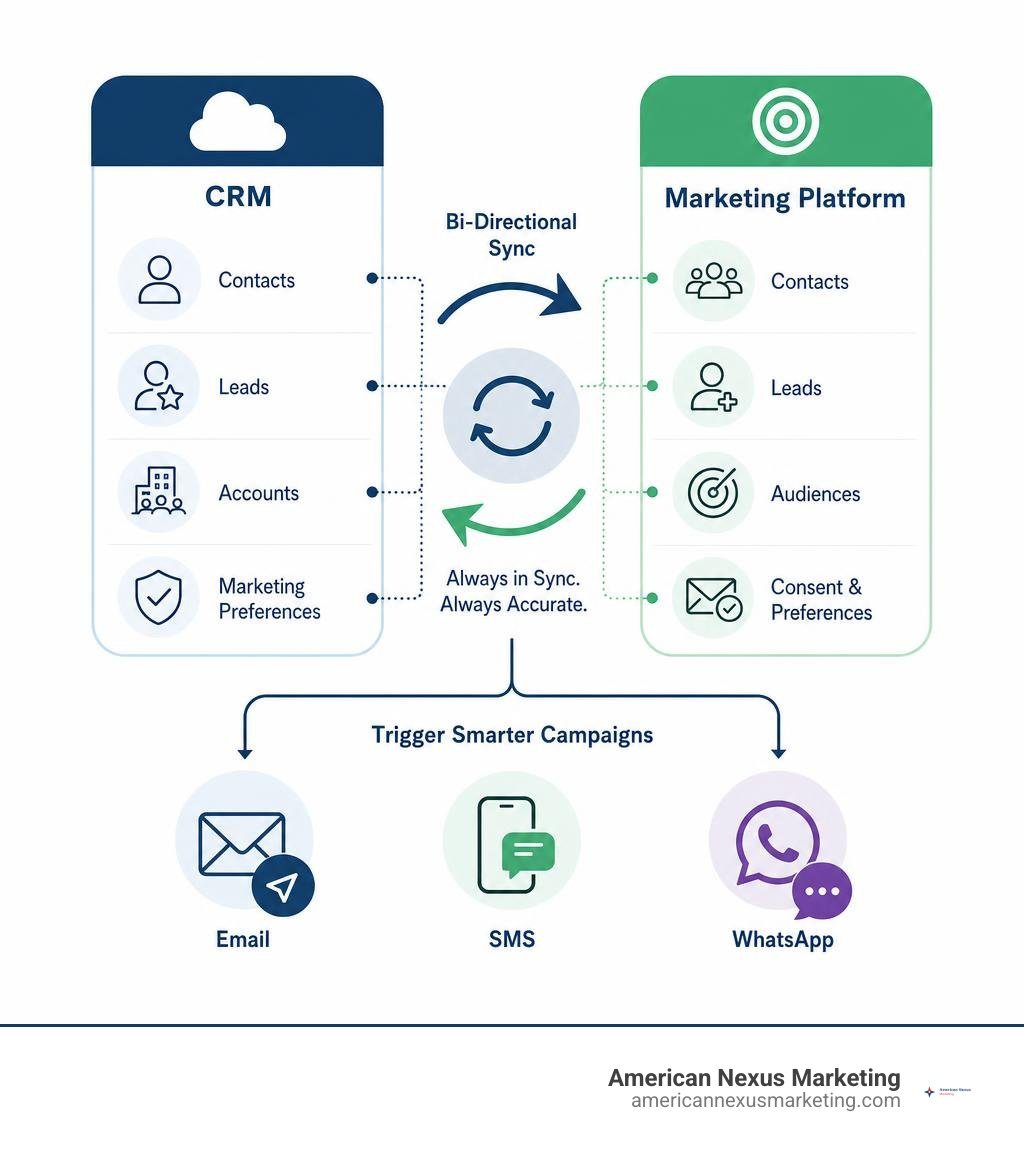
The dotmailer Salesforce integration — now officially called the Dotdigital for Salesforce connector — links your CRM data directly to your email and cross-channel marketing platform, so your sales and marketing teams are always working from the same information.
Here’s what it does in plain terms:
- Installs via Salesforce AppExchange as a managed package
- Syncs contacts, leads, accounts, and marketing preferences in both directions
- Triggers automated campaigns across email, SMS, and WhatsApp based on CRM activity
- Updates opt-outs and consent back into Salesforce automatically for compliance
If you already use Salesforce to manage customers and want to run smarter, automated marketing campaigns without manually exporting lists, this integration is the bridge that makes it happen.
Email marketing is growing fast — sends have increased 23.9% year over year according to Dotdigital’s own benchmark data. Businesses that connect their CRM to their marketing platform are the ones capturing that growth. Those still copying and pasting contact lists are falling behind.
Dotmailer salesforce integration word roundup:
Understanding the Dotmailer Salesforce Integration and How It Works
To understand the dotmailer Salesforce integration, it helps to look at how these two systems talk to each other. Instead of forcing your marketing team to work in a silo, this integration creates a unified data loop.
At its core, the connector functions as a bi-directional bridge. This means when a sales rep updates a lead’s status or contact details in Salesforce, that change is pushed to Dotdigital. Conversely, when a subscriber interacts with an email campaign, clicks a link, or updates their marketing preferences, those behavioral insights are sent straight back into Salesforce.
This setup ensures that both your sales and marketing departments have access to the same single source of truth. If you want to dive deeper into why this alignment is so critical, check out our guide on why you need CRM software with email integration right now.
To explore the official capabilities of this connection, you can view the Salesforce marketing integration that works | Dotdigital product page.
Key Benefits of a Dotmailer Salesforce Integration for Small Businesses
For a small business or solo founder, time and budget are always in short supply. You cannot afford to waste hours manually cleaning contact lists or dealing with broken data transfers. Here is how implementing the dotmailer Salesforce integration changes the game:
- Massive Efficiency Gains: Automating the data sync between your CRM and your marketing platform eliminates manual CSV imports and exports. This reduces human error and frees up your team to focus on strategy.
- Hyper-Targeted Messaging: By using live CRM data, you can build highly personalized campaigns. For example, you can automatically send a specialized discount code to customers who haven’t purchased in 90 days.
- Proven ROI and Growth: A real-world example of this power is how the ambient scenting company ScentAir grew repeat purchases by 300% using the Dotdigital and Salesforce CRM integration. When your marketing is based on actual customer behavior, your conversion rates skyrocket.
- Better Contact Management: Keeping your sales pipeline aligned with your email list is essential for nurturing relationships. To see how this fits into your broader tech stack, take a look at our breakdown of the best email CRM for small business to keep your contacts close.
How the Connector Syncs Contacts, Leads, and Accounts
The integration does not just dump all your data into one big, unorganized bucket. It maps your Salesforce database structure to Dotdigital’s contact data fields systematically:
- Contacts and Leads: These are the primary records synced between the two systems. You can choose whether to sync all contacts and leads or filter them based on specific Salesforce views or campaign memberships.
- Accounts: Account-level data can be synced to help B2B marketers target specific companies or industries with account-based marketing (ABM) strategies.
- Marketing Preferences and Opt-Outs: This is the most critical piece. The connector synchronizes opt-in statuses and unsubscribe requests bi-directionally. If someone unsubscribes from a Dotdigital campaign, their record in Salesforce is automatically updated to reflect that change, protecting you from compliance issues.
Choosing the right platform to manage this data is a major decision. If you are still evaluating your options, consult our guide on how to choose the best email marketing tool for your small business in 2026.
How to Install and Configure the Connector
Getting the integration up and running requires a systematic approach. Before you begin, make sure you have system administrator access to your Salesforce account and API credentials for your Dotdigital account.
Step-by-Step Guide to Set Up Your Dotmailer Salesforce Integration
Follow these steps to complete the core installation:
- Install the Managed Package: Log into your Salesforce account, navigate to the Salesforce AppExchange, and search for “Dotdigital for Salesforce.” Click Get It Now and follow the prompts to install the package for all users or specific profiles (we recommend starting with administrators and marketing users).
- Generate Dotdigital API Credentials: Log into your Dotdigital account. Go to Settings > Access > API Users and click New User. Generate a secure password, ensure the user status is set to Enabled, and save the credentials.
- Link the Accounts: Return to Salesforce. Open the App Launcher, search for the Marketing app (look for legacy component names like
ddm.Email Marketingif it does not appear immediately), and open the Marketing tab. Enter your newly created Dotdigital API credentials to link the platforms. - Configure User Permissions: If some team members cannot see the marketing tab, a Salesforce admin must create a permission set, enable the
ddm.Email Marketingapp under Assigned Apps, and assign this permission set to those users. For detailed troubleshooting on this step, refer to the official guide on how to Access Marketing as a Salesforce user | Dotdigital Marketing Help Centre.
Mapping Fields and Configuring Synchronization Settings
Once the connector is installed, you must define exactly how data fields correspond between the two platforms.
- Access Field Mapping: In Salesforce, navigate to the Dotdigital Settings page and select the Field Mapping tab. Choose either the Contacts or Leads sub-tab.
- Select Sync Direction: For each field, you can set the synchronization direction. Your options are Salesforce to Marketing, Marketing to Salesforce, or Two-way.
- Match Field Types: Ensure that Salesforce field types align with Dotdigital data types. For example, a Salesforce Picklist or Phone field maps to a Dotdigital String, a Boolean maps to Yes/No, and a Date/Time maps to a Date.
- Configure Sync Schedule: Under the Synchronisation Schedule tab, set how often your data updates. You can choose intervals ranging from every 1 hour up to once a month.
- Set Maintenance Frequency: Schedule your Contact/Lead Maintenance sync to run no more than once a day. Running this resource-heavy cleanup too frequently can degrade your Salesforce organization’s overall performance.
For a deeper dive into field mapping mechanics, read the official documentation on how to Map Salesforce fields and configure synchronisation | Dotdigital Marketing Help Centre.
Customizing Salesforce Page Layouts for Campaigns, Contacts, and Leads
To make the integration truly useful for your sales team, you need to display Dotdigital marketing data directly on standard Salesforce page layouts. This requires manual customization of three primary layouts: Campaigns, Contacts, and Leads.
- Campaigns Page Layout: Add the custom button Link to Email Address Book to the layout. Next, add the related lists Campaign to Email Campaign Link and Email Address Books to the page. Finally, edit the Lightning page using the Lightning App Builder to drag the Campaign Button component onto the page.
- Contacts and Leads Page Layouts: Add the Opt-in type field to both layouts. Drag the custom buttons Add to Automation Program and Engagement Timeline onto the layouts.
- Add Related Lists: Add these seven essential related lists to both Contacts and Leads layouts:
- Email Campaigns
- Email Clicks
- Email Page Views
- Email ROI
- Email Social Bookmarks
- Form Responses
- Suppressions
To prevent manual data entry errors, edit the properties of these related lists and remove the New button so records can only be created automatically by the integration. For step-by-step visual guidance, check out the official guide to Customise page layouts in Salesforce | Dotdigital Marketing Help Centre.
Managing Compliance, Preferences, and Automated Journeys
With privacy regulations like GDPR and CCPA strictly enforced, managing consent is not optional. Fortunately, the dotmailer Salesforce integration makes compliance straightforward by automating consent tracking across both systems.
Handling Opt-Ins, Suppressions, and GDPR Compliance
Using version 2.41 or above of the Dotdigital Salesforce connector allows you to sync the Opt-In Type field directly between platforms. This ensures that you only message contacts who have given explicit consent.
- Two-Way Consent Sync: If a contact updates their preferences via a Dotdigital preference center, those changes sync back to Salesforce in real-time. If they unsubscribe, they are added to the Salesforce Suppressions related list.
- GDPR Tools: Dotdigital features built-in GDPR consent tracking and holds an ISO 27001 security accreditation, ensuring your customer data is stored securely.
- Conflict Resolution: If a record is updated in both Salesforce and Dotdigital during the exact same sync window, Salesforce data is treated as the primary source of truth and overrides the Dotdigital change.
Triggering Automated Cross-Channel Journeys from CRM Data
One of the most powerful features of this integration is the ability to launch multi-channel marketing workflows directly from CRM updates.
For example, when a sales rep changes a lead’s status to “Qualified” in Salesforce, that change can automatically enroll the lead into a Dotdigital welcome journey. This journey can include a mix of email, SMS, and WhatsApp messages:
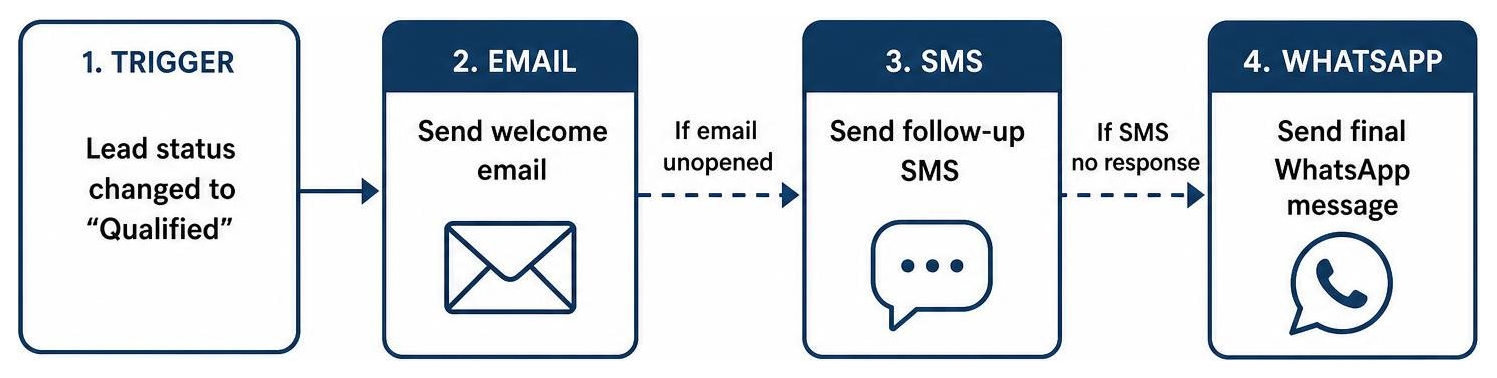
This multi-channel approach ensures you reach your audience where they are most active. To learn how to structure these flows effectively, read our step-by-step guide on how to build a drip campaign workflow that converts.
Limitations, Best Practices, and Native Alternatives
While the dotmailer Salesforce integration is highly robust, no integration is entirely without challenges. Understanding its limitations upfront will save you significant headaches down the road.
Challenges and Limitations of the Integration
Before committing to this setup, keep these technical limitations in mind:
- API Limits: Because Dotdigital is an external platform, it relies on Salesforce APIs to sync data. Heavy sync schedules can quickly consume your daily Salesforce API limits, potentially stalling other integrated business systems.
- Data Storage Costs: Syncing detailed behavioral data (like individual link clicks and page views) creates thousands of new records in Salesforce. This can cause you to run out of Salesforce data storage quickly, leading to unexpected upgrade fees. To understand how to manage these platform expenses, review our analysis of the real CRM software cost for small business and how to avoid overpaying.
- Sync Delays: Because data is synchronized in scheduled batches (minimum 1-hour intervals), it is not truly instantaneous. This delay can occasionally impact time-sensitive automation triggers, like immediate abandoned cart sequences.
Best Practices for Real-Time Syncing and Data Management
To keep your integration running smoothly and avoid hitting platform limits, follow these best practices:
- Test in a Sandbox First: Always install and test the connector in a Salesforce Sandbox environment before deploying it to your live production instance.
- Limit Behavioral Syncing: Instead of syncing email clicks, page views, and social bookmarks globally for every campaign, use the Apply to Selected feature to only sync behavioral data for your most critical campaigns.
- Monitor the Sync Audit Log: Regularly check the Dotdigital Sync Audit log. Look for errors highlighted in red to quickly identify and fix failed field mappings or expired API permissions.
- Keep Maintenance Daily: Keep your Contact/Lead Maintenance sync scheduled to run once a day during off-peak hours to protect platform performance.
Comparing External Connectors to Native Salesforce Email Tools
When deciding how to handle email marketing within Salesforce, you have two primary paths: using an external connector like Dotdigital or using a native Salesforce email tool.
| Feature / Capability | External Connectors (e.g., Dotdigital) | Native Salesforce Email Tools |
|---|---|---|
| Data Storage Location | Synced between external servers and CRM | Stored 100% inside Salesforce |
| Setup Complexity | Moderate (requires package install & field mapping) | Low to Moderate |
| API Dependency | High (subject to daily API limits) | None (runs natively inside the CRM) |
| Automation Capabilities | High (advanced multi-channel customer journeys) | Moderate (often limited to basic workflows) |
| Pricing Structure | Tiered (based on contact volume and email sends) | Flat rate or user-based licensing |
External platforms like Dotdigital excel at building complex, multi-channel customer journeys. However, if your team is small and you want to avoid API limitations and external sync delays entirely, a native tool might be a better fit. For a broader look at how different marketing platforms stack up, check out the ultimate guide to companies like HubSpot for growing businesses.
Frequently Asked Questions about Dotdigital and Salesforce
How do I access the Dotdigital Marketing app within Salesforce?
Once the managed package is installed and user permissions are configured, click the App Launcher (the nine-dot grid icon in the top-left corner of Salesforce). Search for Marketing or look for the legacy name ddm.Email Marketing. Click the app to open the integrated Dotdigital dashboard directly within your Salesforce window.
Does Dotdigital integrate with Salesforce Commerce Cloud?
Yes. Dotdigital integrates with Salesforce Commerce Cloud (formerly Demandware) using a certified cartridge and the Open Commerce API (OCAPI). This allows you to sync customer purchase history and behavioral data to run automated post-purchase campaigns.
To enable subscriber synchronization, you must create a custom boolean attribute named acceptsMarketing within the Profile system object in your Commerce Cloud Business Manager and assign it to a Marketing attribute group. For complete setup details, refer to the official guide to Install and set up the Salesforce Commerce Cloud connector | Dotdigital Marketing Help Centre.
What happens if data is updated in both platforms simultaneously?
If a contact record is updated in both Salesforce and Dotdigital during the same synchronization window, a data conflict occurs. The connector is programmed to prioritize Salesforce. The data in Salesforce will overwrite the changes made in Dotdigital to maintain your CRM as the primary system of record.
Conclusion
Integrating your marketing platform with your CRM is one of the most effective ways to scale your small business. By connecting Dotdigital with Salesforce, you eliminate manual data entry, keep your sales and marketing teams aligned, and unlock the power of automated, multi-channel marketing campaigns.
While configuring field mappings and page layouts takes some initial effort, the payoff in efficiency and customer engagement is well worth it.
If you are still mapping out your marketing technology stack for the year ahead, check out our comprehensive guide on the best all-in-one marketing platforms compared 2026 to ensure you are building on the right foundation.